An egg is a file which tells Pterodactyl how to install, launch, and manage whatever application the egg is advertising to be installable. It gives Pterodactyl the commands necessary to download server files, instructions on how to setup the environment for the software appropriately, and what configuration options should be available to server operators.[1]
As all games are different not all egg installations will be the same. Some degree of basic server and computer literacy will be necessary. This guide will aim to be as helpful as possible in spite of this.
The benefit of an egg is that, so long as it has been added to the list of eggs on the panel, EDC can terminate and boot up the relevant software on demand.
Checking if we have the egg
If you are new to this, start here.
The first thing we want to do is see if we currently have the egg or not.
Click the cog icon to the left of the colored smiley face to access the administrative section of Pterodactyl.The Pterodactyl panel button to get to the administrative section.
Eggs found in locations not documented below should be sanity checked by an experienced systems operator prior to installation. Experienced operators include Sirdog, Sushiloid, and SierraKomodo.
Finding the egg
The following locations are commonly used to find eggs:
For the sake of this guide, let's suppose we wish to spin up a Mordhau server. On the list of Option 1, we find that Mordhau's egg is said to be located at a very long URL. Going to this URL presents a raw page with text. You are viewing a JSON file; JSON being a well-known configuration format which eggs use. The entirety of this page's contents should be saved to your computer in some fashion. The advised way is to right click on the page and select Save as.
Click the cog icon to the left of the colored smiley face to access the administrative section of Pterodactyl.The Pterodactyl panel button to get to the administrative section.
You will be greeted with the following list (or similar looking list). Click Import Egg.List of Pterodactyl egg nests.
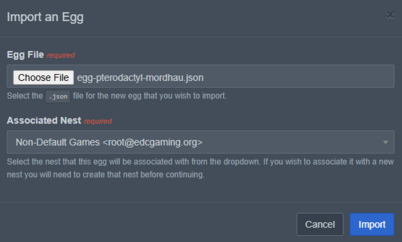
You will be shown a confirmation prompt. In this prompt, select the relevant JSON file, and ensure to set the nest to Non-Default Games. Then click Import.Pterodactyl egg importing prompt.
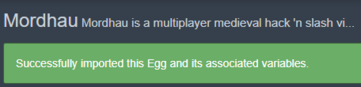
You should see a new page with a lot of information on it and a green prompt saying the import was successful.Pterodactyl successful egg import notification.
Footnotes
↑For example, for the Arma server, it's egg tells Pterodactyl's GUI to provide an option to change the server's modlist. It maps the input made on the GUI to the relevant configuration file on the server.